

Create a goal
Step 1: Start a new goal
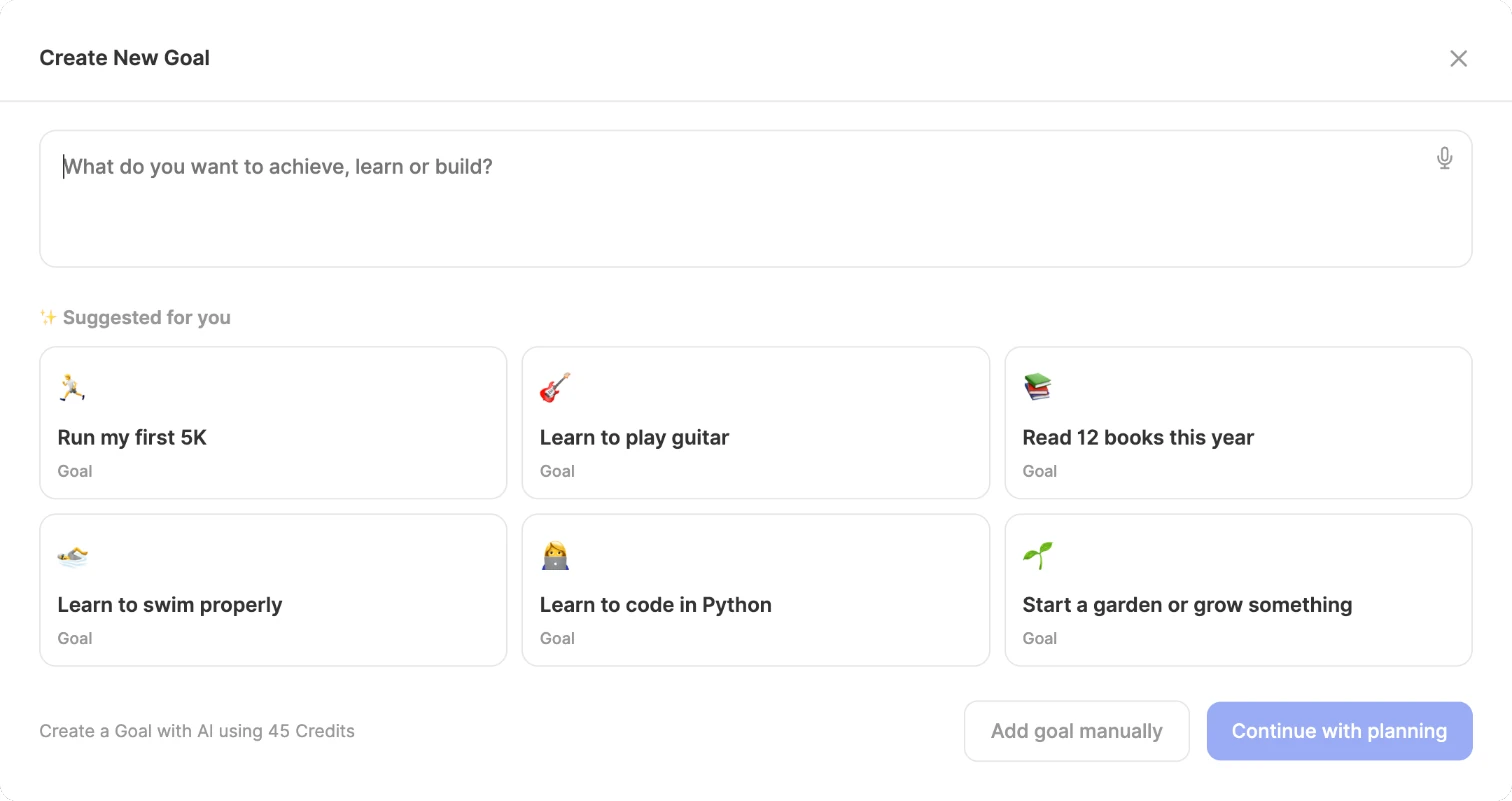
Go to Goals and click New Goal.
Step 2: Describe it
In What do you want to achieve, learn or build?, type your goal in your own words, tap the mic to say it, or pick one of the Suggested for you ideas to start from.
Step 3: Continue
Click Continue with planning. (Add goal manually skips the AI.)
Tip
Be as specific as you like. “Learn to code” works, but “I want to learn Python and build my own app, and I’ve got about two hours a week” gives the AI much more to work with.
Answer a few quick questions
Before it builds anything, ByDesign asks for a start date, a deadline and how many hours a week you can give it, plus one or two questions about your goal: a fitness goal might ask about your current level, a learning goal about your experience or budget. Anything your goal already says is filled in for you.
Then click Build my plan. It takes a little while, and you can leave and come back.
What you get
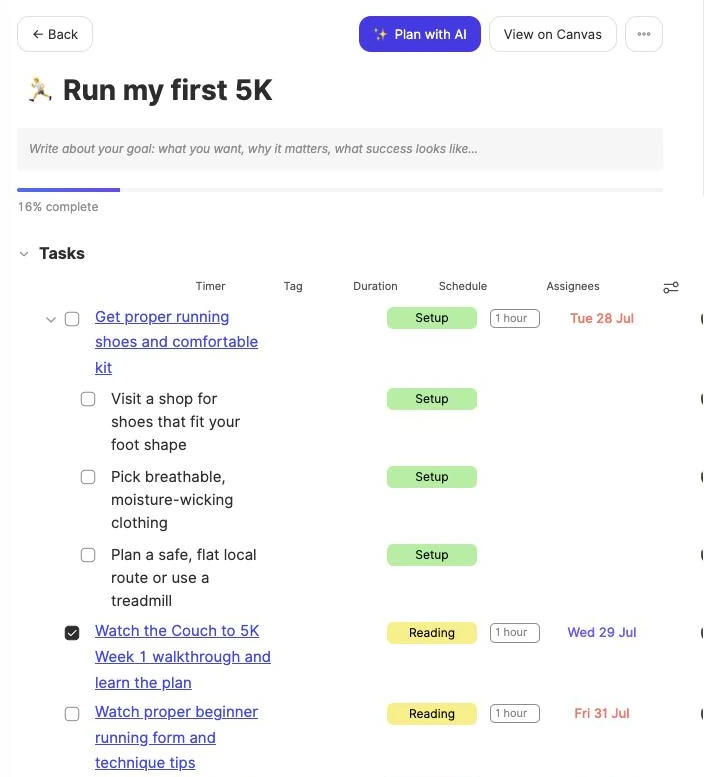
- Tasks: 8 to 20 specific steps, each with a date between your start date and deadline, a realistic duration from 15 minutes to 4 hours, and a tag like Setup, Reading, Video, Research, Practice or Review.
- Subtasks where a step needs breaking down, and routines as one repeating task.
- Resources: real videos, courses and articles attached to the tasks that need them, checked before they’re saved, plus 3 to 6 links for the whole goal under Links & Resources.
- Dates on your calendar: the tasks land on their dates as all-day items, so you can see how the plan fits your weeks.
Make it yours
Nothing is locked. Edit any task, change a date, remove what you don’t need or add your own.
To rework it with AI, click ✨ Plan with AI on the goal page and choose Regenerate this plan, Break down one step, Find better resources or Adjust this timeline. Regenerating asks you to confirm first and keeps the tasks you’ve completed.
Or just ask the assistant, like “Make this more realistic” or “I’ve only got one hour a week, adjust it”. It can shift dates, cap your hours per week, reschedule missed tasks, or add tasks and links.
Give the tasks a time
Goal tasks start as all-day items on their dates. To fit them into your days at real times, around your meetings, work hours and AI Blocks, use AI scheduling, or drag them onto your calendar yourself. Open any task to find its resources right there.
What it costs
Planning a goal uses about 45 credits, the most of anything the AI does, because it breaks the goal down, finds real resources and dates every task. The New Goal window shows the cost before you start, and you need at least 25 credits. Short on credits? You can still add a goal manually.
Good to know
- A plan is saved as soon as it’s built; there’s no preview step.
- Subtasks stay on the goal page; only the main tasks go on your calendar.
- AI goal plans come with the AI and AI Plus plans. The 7-day free trial doesn’t include them.
- Goals are on the web and in the Mac and Windows apps, not in the iPhone and Android apps.