

On the web and in the desktop apps
Step 1: Open Settings
Click Settings at the bottom of the menu on the left, then Customizations.
Step 2: Choose your appearance
Under Appearance, pick System, Light or Dark.
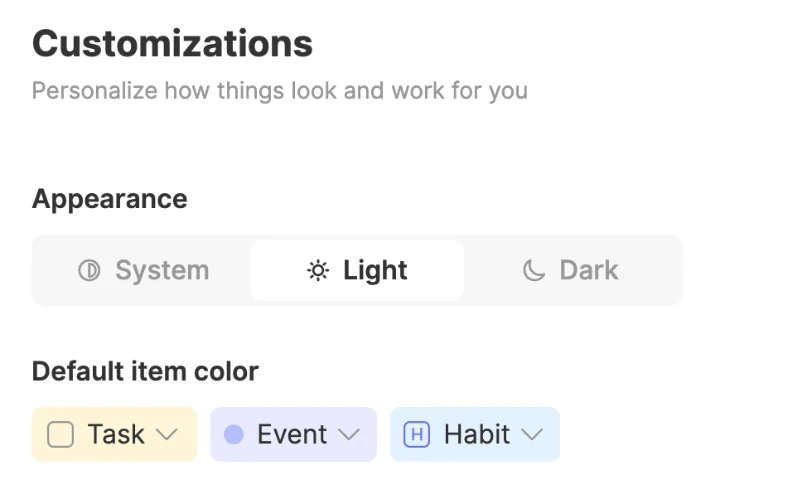
Your choice is saved to your account, so the web app and the Mac and Windows apps look the same each time you sign in.
On iPhone and Android
Step 1: Open your profile
Tap the profile tab, the last one along the bottom.
Step 2: Open Customizations
Tap Customizations.
Step 3: Choose Display Mode
Under Display Mode, pick Light, Dark or System.
Note
The phone apps keep their own setting on each device, so your phone can be dark while your computer stays light.
What System does
System matches your device. When your phone or computer switches to dark, at night for example, ByDesign switches with it, and back again in the morning.
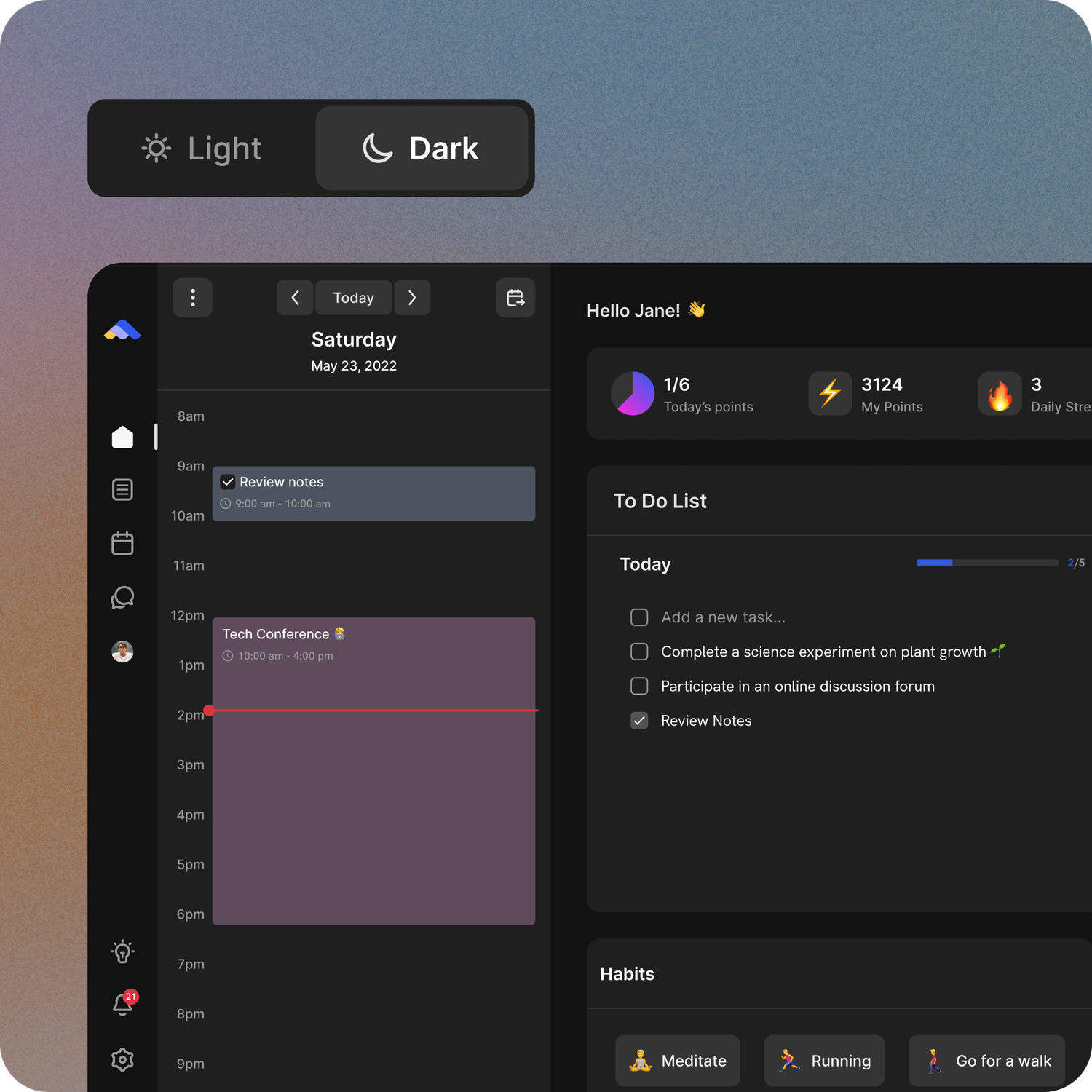
Widgets in dark mode
Your iPhone widgets follow your iPhone’s light or dark appearance. On Android, the calendar, Inbox and Pin a Page widgets have dark versions.
Colours for new items
In the same Customizations settings, Default item color sets the colour that new tasks, events and habits get when they don’t have one of their own. In the phone apps it’s under Default Item Color, as Default Task Color, Default Event Color and Default Habit Color.
Good to know
- ByDesign starts in Light. Choose Dark or System to change it.
- There are no accent colour or app icon options.
- Dark mode is on every plan.
Keep reading
- Integrations and syncCalendar customizationFilter what your calendar shows, color each calendar, and set default colors, views, week start and reminders.
- Getting startedUse ByDesign on your phoneFind your way around the iPhone and Android apps, ask ByDesign, add tasks on the go, and put your day on your home screen with widgets.
- More about this featureDark mode