

Filter your calendar
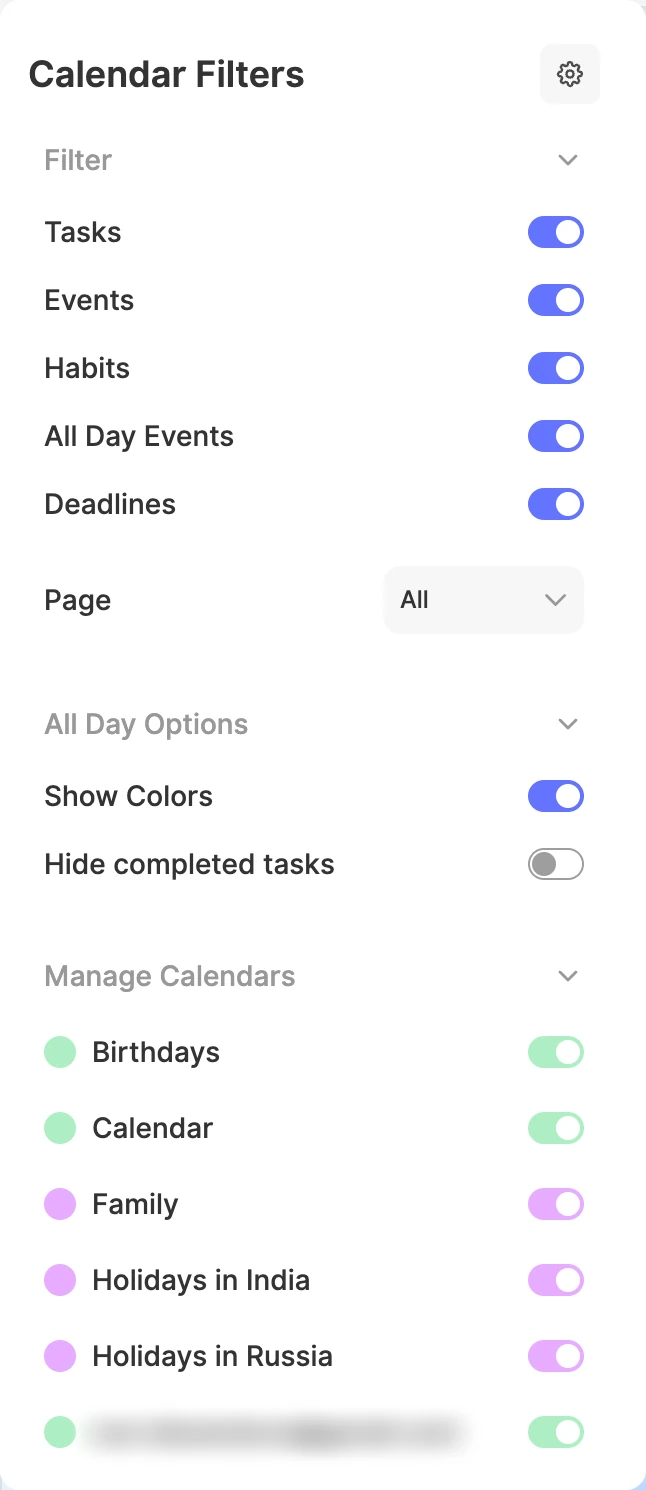
Open the Calendar and click ⋮ at the top right to open Calendar Filters:
- Filter: switch Tasks, Events, Habits, All Day Events and Deadlines on or off.
- Page: show only the items from one page.
- All Day Options: Show Colors fills all-day items and the Month view with their colors (when it’s off, they get a thin color accent), and Hide completed tasks hides what you’ve ticked off.
- Manage Calendars: switch each connected calendar on or off.
Color each calendar
Want your work calendar in purple? In Manage Calendars, click the colored dot next to a calendar and pick a color, type a Hex or RGB value, or choose a recent color. Its events take that color.
Tip
Tasks take the color of their page, so give each page a color too, and your calendar shows at a glance where your time goes.
Set your defaults
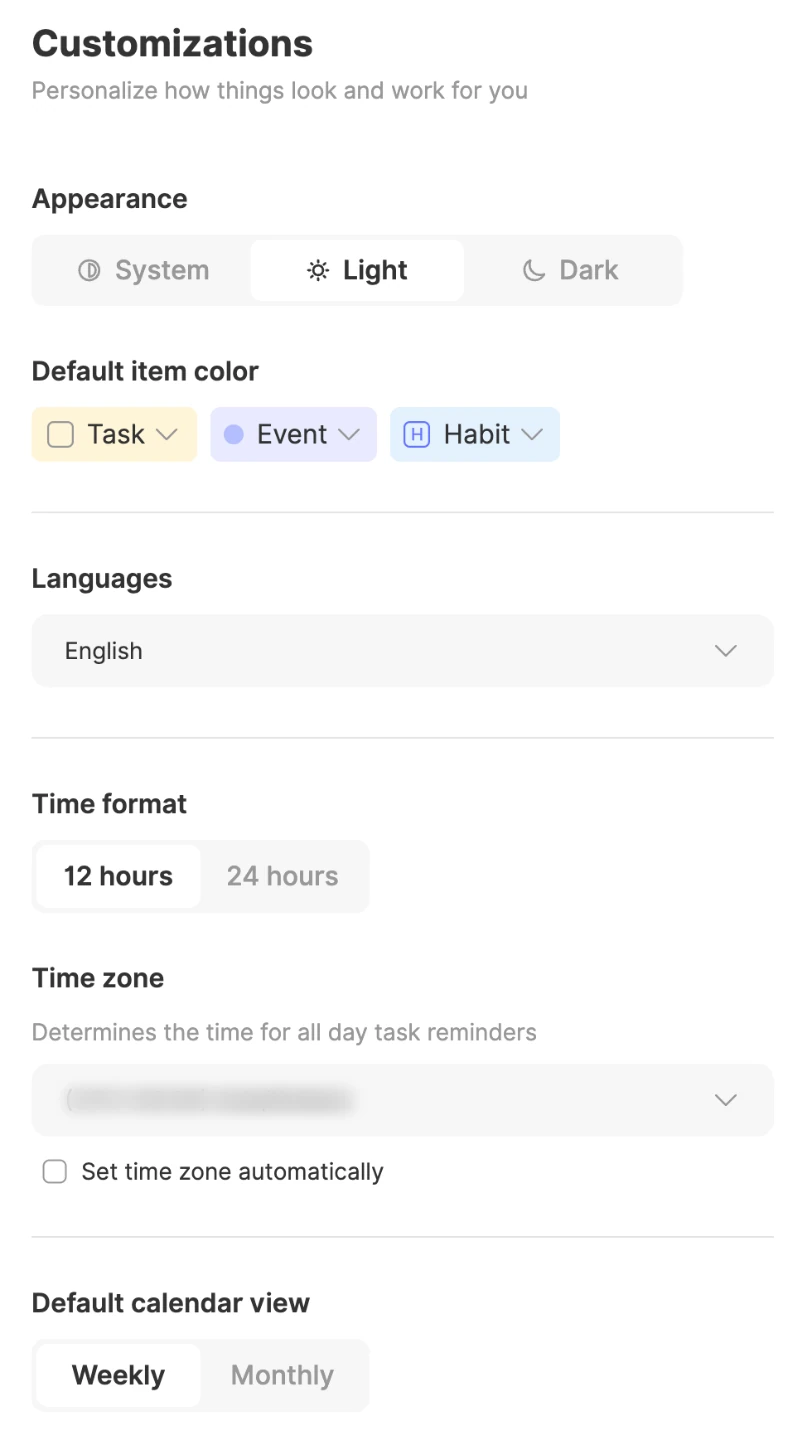
Open Settings → Customizations:
- Default item color: the color tasks, events and habits get when they don’t have one of their own. A task takes its page’s color first.
- Time format: 12 or 24 hours.
- Time zone: the time zone for your all-day reminders, or tick Set time zone automatically.
- Default calendar view: Weekly or Monthly.
Further down:
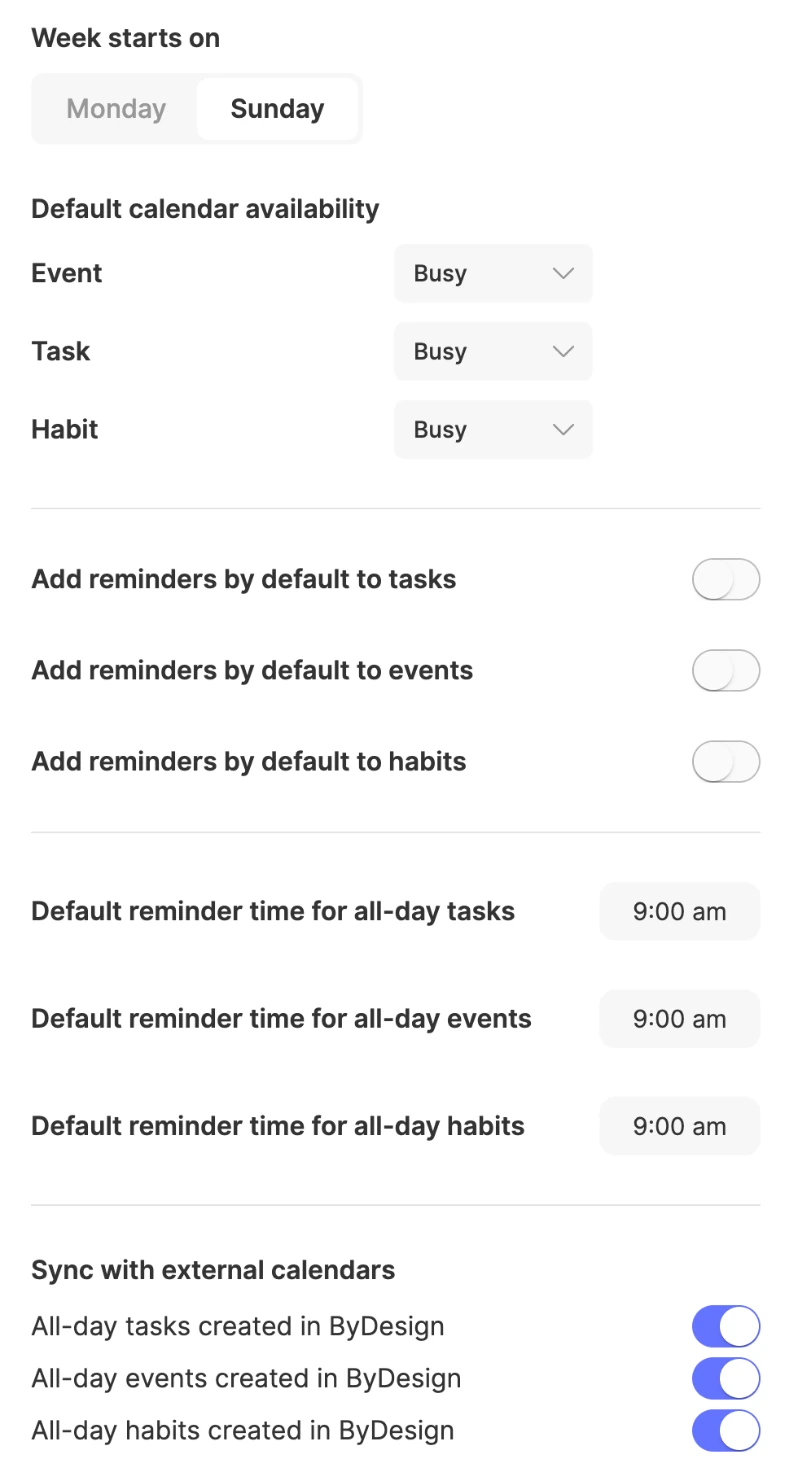
- Week starts on: Monday or Sunday. It’s Monday to begin with.
- Default calendar availability: whether new events, tasks and habits show you as Busy or Free. They start as Busy.
- Add reminders by default to tasks, events or habits, and the default reminder time for all-day ones.
- Sync with external calendars: whether all-day tasks, events and habits created in ByDesign go to your connected calendar. They’re off to begin with.
Keep reading
- Integrations and syncUsing the calendar in ByDesignSee your tasks, events, habits and synced calendars together, switch between week and month, and drag tasks in to block time.
- Working with pagesCustomizing and managing a pageColor-code a page, use its menu to star, duplicate, export or tidy it, and restore deleted pages from Trash.