

Your main Kanban
Your main Kanban is your command centre. All your tasks show up in one of four columns:
- Backlog: ideas and tasks you’re not ready to start yet. New tasks start here.
- Next Up: tasks queued and ready to begin.
- In Progress: what you’re working on right now.
- Completed: done and dusted. Moving a card here ticks the task off.
Where to find it
- Go to Workspace → Timeline and click Kanban, the last of the view buttons.
- Or add the Kanban Board widget to your Dashboard.
- Use Filter, Tag and Page to focus on what matters right now.
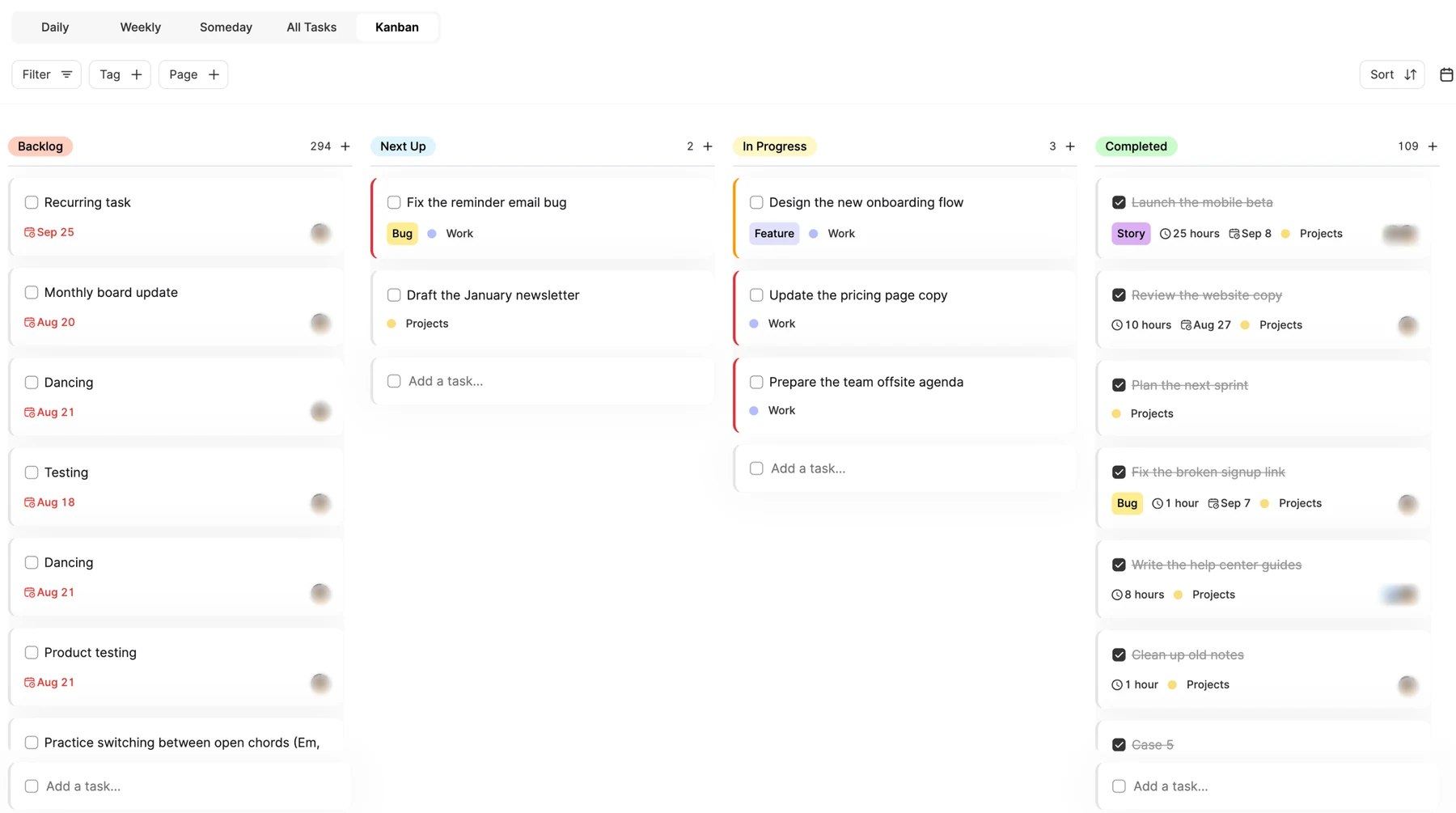
Move work forward
- Drag a card to another column to change its status.
- Or set the status in the task: open it and pick the column from the status menu at the top of the form, like Backlog. No dragging needed.
- Moving a card out of Completed marks the task as not done again.
Add a Kanban board to a page
Want a board for one project or team? Create it right on the page:
Step 1: Open the page
Open the page for your project in the Workspace.
Step 2: Insert the board
On a new line, type / and choose Kanban Board.
Step 3: Work in sync
The board starts with the same four columns as your main Kanban and stays in sync with it: move a card on either one and it moves on both.
Customize a board’s columns
If a project needs its own stages, like Ideas, In Design, Built and Shipped, use Edit columns on the page’s board to rename columns or add a New Column. You can also show or hide columns.
Note
ByDesign first asks “Make this board independent?”: once you edit its columns, the board becomes its own, and changes there no longer show up on your main Kanban.
When to use what
- Use the main Kanban when you want one view of everything in progress, you’re running projects in parallel, or you want the same status tracking everywhere.
- Add a page board when a project needs a view of its own, or the four standard columns don’t fit what you’re doing.
Tip
Keep the standard columns, Backlog, Next Up, In Progress and Completed, if you want a page’s work to show on your main Kanban too. Only customize them when you need a truly separate workflow.
Quick tips
- Check your main Kanban regularly: it’s your high-level pulse.
- Remember: editing a page board’s columns breaks its sync with the main Kanban.
- Filter your view to see only what matters right now.
- Every task has one status at a time: pick the most accurate stage.
Good to know
- Kanban is on the web and in the Mac and Windows apps. The iPhone and Android apps have the Daily and Someday views.