

Make a task or event repeat
Step 1: Open the item
Open a task or event, or create a new one.
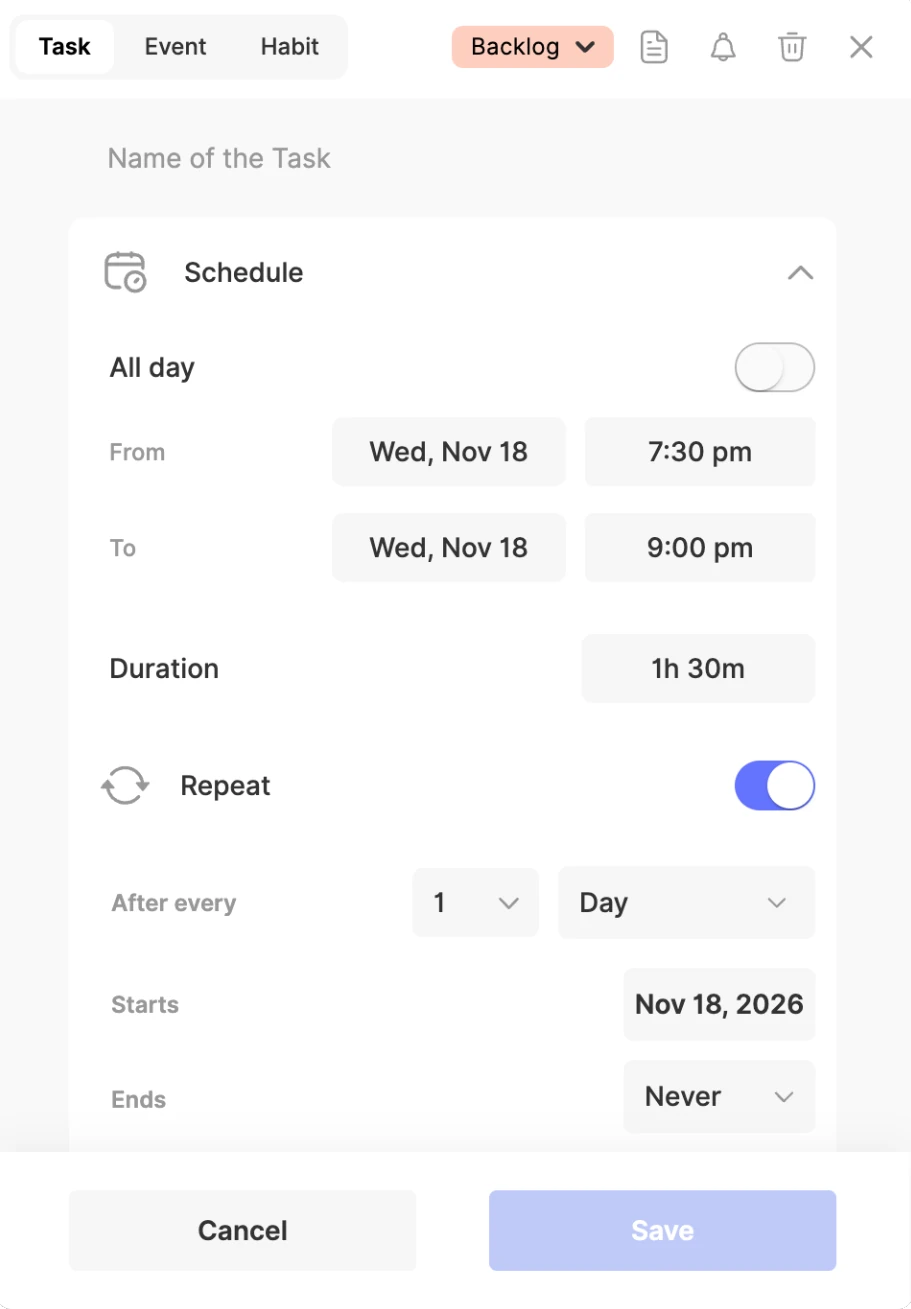
Step 2: Switch on Repeat
Under Schedule, turn on Repeat.
Step 3: Choose how often
Set After every to 1 to 10 and Day, Week, Month or Year. For weeks, pick the weekdays; for months, a date like the 15th or a pattern like the 2nd Monday or the Last Friday.
Step 4: Start and end
Check Starts, and set Ends to Never or On a date. Then save.
Or just type it
When you add a task, type every with when it repeats, like “every day”, “every week”, “every Monday” or “every month”. For example, “Workout at 7am for 1h every Monday” makes a one-hour task at 7 AM, every Monday.
Change one occurrence or all of them
- Editing: change the time, date, duration or repeat of a repeating task or event, and ByDesign asks whether to change This one, This and following, or All of them.
- Deleting: click the bin in the item’s form and choose This, This and following or All the same way.
- Completing: ticking off a repeating task completes just that occurrence; the next one stays on your list.
- Overdue: a repeating task you missed shows once under Overdue, not once for every missed day.
Habits
- Habits always repeat. Set their Start Date, an optional End Date, and Repeat with After every.
- Missed a day for a good reason? Choose Skip Habit on that day to skip it without affecting your streak, or Undo Skip Habit to bring it back.
Spot a repeating item
Repeating tasks show a checkbox with two circling arrows, in your lists and on the calendar.
Keep reading
- Planning basicsNatural language: type tasks the way you thinkAdd dates, times, durations, deadlines, repeats and pages as you type, with command words like on, at and every.
- Planning basicsBuilding habitsCreate a habit, choose how often it repeats, check it off, keep your streak and build it with friends.