

Open it anywhere
- On the web or in the Mac and Windows apps: press Ctrl+G, or ⌘G on a Mac, anywhere in ByDesign.
- On your phone: tap + to open the task form, which understands the same command words, except in.
How it works
When you press Ctrl+G, the console appears and you can start typing right away. For example:
“Drink water every day at 8am”
- Task name: Drink water.
- Repeat: every day.
- Time: 8am.
- Type: a task, unless you choose an event.
Based on what you write, ByDesign shows suggestions. Use ↑ and ↓ to move between them and Enter to confirm.
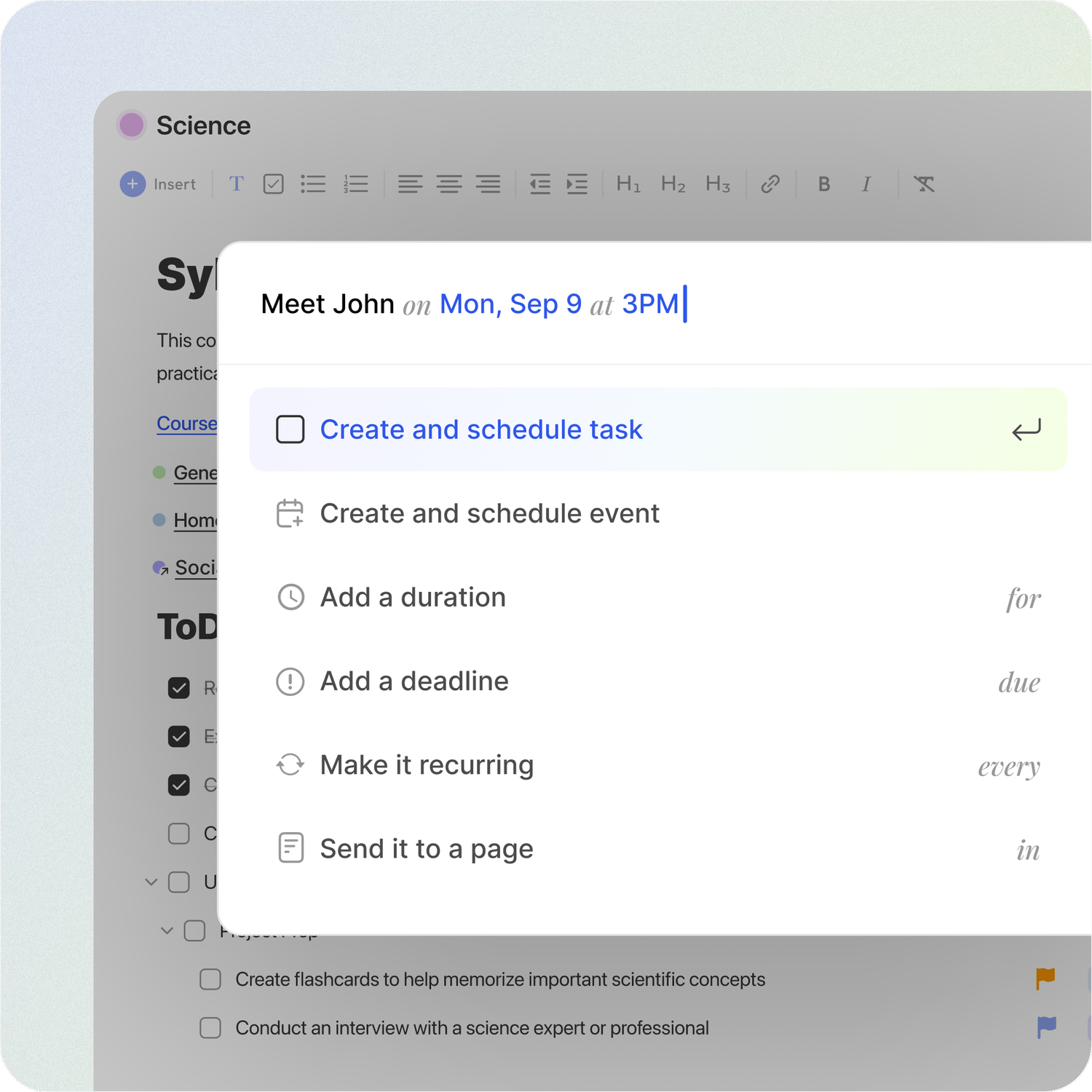
What you can capture
You can create tasks and events, and schedule them as you go. ByDesign reads what you type and lets you pick the right result, so you never have to stop and think.
Keywords and formats
- Dates, with on: “on today”, “on tomorrow”, “on Friday”, “on 12 March” or “on Dec 1”, up to a year ahead.
- Times, with at: “at 9am”, “at 10:30am” or “at 5pm”. With no date, that’s today, or tomorrow if the time has passed.
- Durations, with for: “for 30 min”, “for 1h” or “for 1h 30”.
- Deadlines, with due: “due Thursday”.
- Repeats, with every: “every day”, “every Monday”, “every week” or “every month”.
- Pages, with in: “in Finance”.
For example, “Write blog on Saturday for 2h” makes a two-hour task on Saturday.
Tip
Dates need on in front of them: type “on Friday”, not just “Friday”.
Send it to a page
Organise as you create with in. “Plan budget on Friday in Finance” creates the task on Friday, inside your Finance page. Anything with no date and no page goes to your Inbox, ready to plan later.
Escape a keyword
If you want a word like “on”, “every” or “in” as plain text, not as a command, press Esc once right after typing it. That tells ByDesign: “Don’t treat this as a command.”
When to use Quick Add
- You’re in the middle of something and a task hits you: Ctrl+G, type it, done.
- You’re doing a brain dump before bed: add five tasks in 30 seconds and sort them tomorrow.
- You’re planning a weekly review: set the repeat and the time in one go.
More ways to capture
- Email: send or forward any email to your unique ByDesign address and it becomes a task in your Inbox. Find the address in Settings → Calendar's Integrations, under Email Tasks to Your Inbox.
- Siri Shortcuts on iPhone: use Quick Task to schedule a new task, or Inbox Task to add one to your Inbox.
- Sharing: on iPhone, share from another app to a ByDesign page; on Android, share text to ByDesign.
- Widgets: the Inbox widget on your phone’s home screen has Quick Add.
Good to know
- Quick Add makes tasks and events. Create habits from the habit form, or with Ctrl+Shift+H.
- Priority and tags aren’t set from Quick Add: add them in the task afterwards.
Keep reading
- Planning basicsNatural language: type tasks the way you thinkAdd dates, times, durations, deadlines, repeats and pages as you type, with command words like on, at and every.
- Planning basicsInboxCapture tasks and ideas in one place, turn emails into tasks, and sort everything when you’re ready.
- More about this featureQuick capture