

Find your view
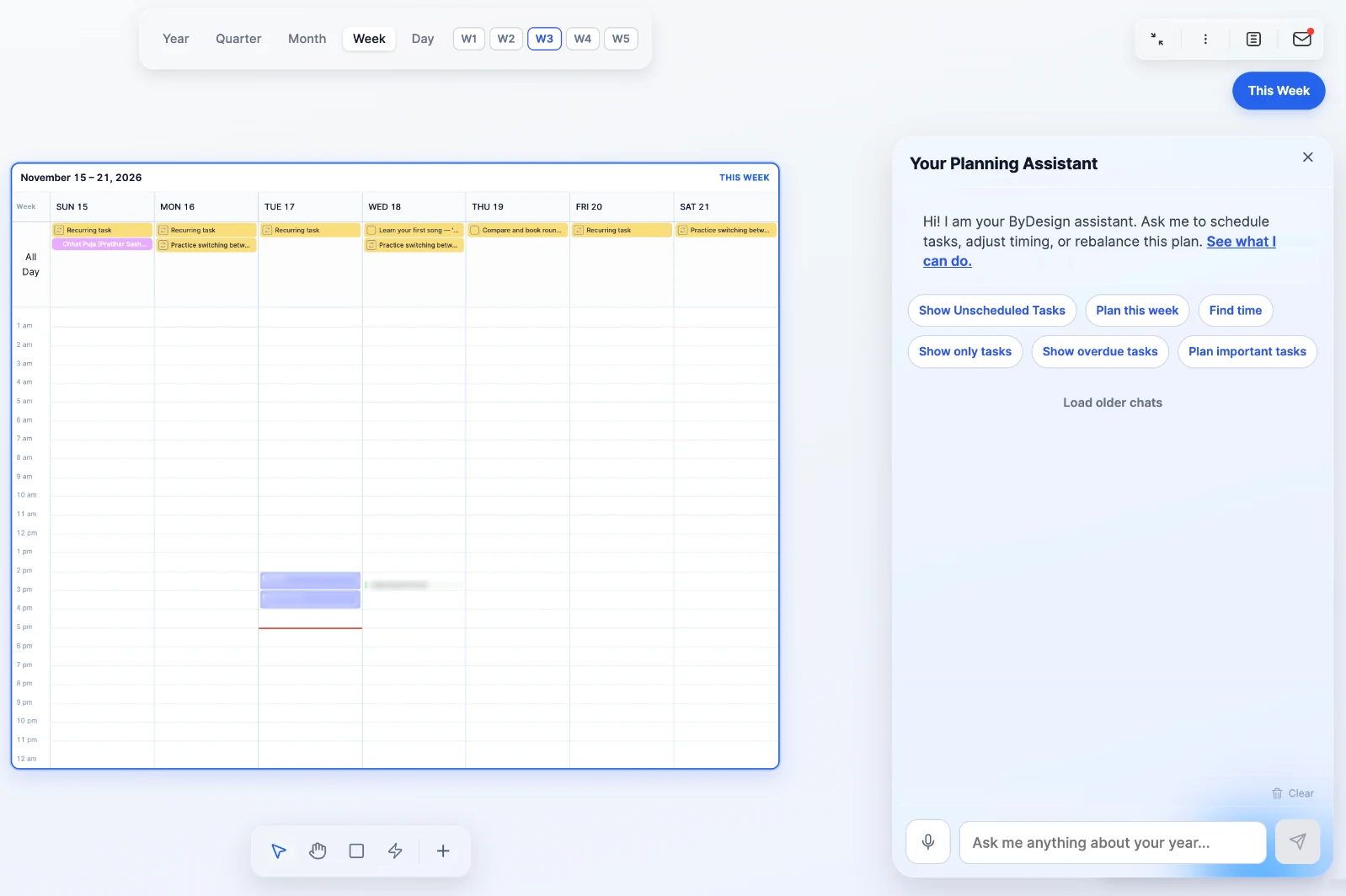
Open AI Canvas from the menu and switch between Year, Quarter, Month, Week and Day with the controls at the top. In Week view, jump between weeks with W1 to W5, or click This Week.
Need a different stretch? Ask the assistant for a custom range, like “Show me the next 10 days”.
The year view
All twelve months at once: every goal, every commitment, every busy stretch in one place. It’s the view for the bigger decisions, like the right month for a holiday, which quarter is already full, or whether that October deadline is realistic.
Double-click a month to open it, or click a day to see it hour by hour.
Zoom and move around
- Zoom from 12% to 300%: pinch on your trackpad, hold ⌘ or Ctrl and scroll, or use the zoom buttons and Fit to screen.
- Pan with the hand tool in the toolbar at the bottom.
- Drag tasks, events and habits from one day to another in any view. Events from Google or Apple Calendar move too when you’re the organiser or there are no guests.
- In Week and Day views, items snap to 15-minute slots: drag an edge to change how long something takes, or drag on an empty slot to add something new.
Sticky notes, images and pages
Drop a sticky note on the year, a month or a week, and change its fill colour and text colour. Each note stays with the view and the period you added it to, like sticky notes on a whiteboard. Use them for context that doesn’t belong to one day: a reminder about a busy stretch, why a month is blocked out, or an idea to come back to.
You can also upload, drop or paste images, and pin pages next to your plans.
Filter what you see
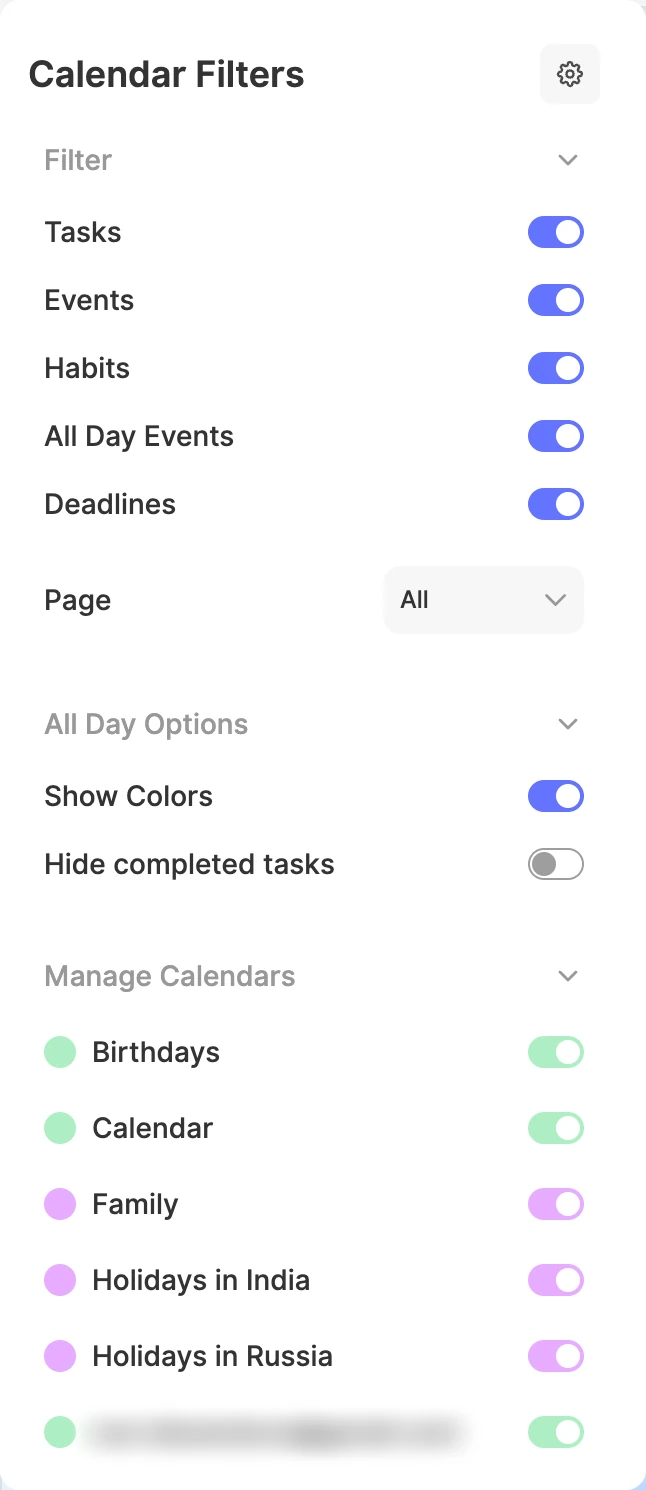
Open Calendar Filters at the top right to show only what you care about right now:
- Switch Tasks, Events, Habits, All Day Events and Deadlines on or off.
- Show the items from one Page.
- Turn on Show Colors, or Hide completed tasks.
- Further down, switch each connected calendar on or off.
Plan with AI on the canvas
The assistant is right there on the canvas: type in the bar at the bottom right, or tap Voice. Ask it to find you time, move things around, plan your week or show a specific stretch, and it lays any changes out on a preview first.
With Hands free voice on, say “Hi ByDesign” to start talking without tapping the mic, in Chrome, Edge or Safari.
Good to know
- The AI Canvas is on the web and in the Mac and Windows apps. The iPhone and Android apps have Day, 3-Day, 5-Day, Week and Month calendars instead.
- The AI Canvas comes with the AI and AI Plus plans.