

Open the assistant
- On the AI Canvas, use the assistant bar at the bottom right, or tap Voice to talk instead.
- On the Goals pages, click Assistant to open the chat panel, or Voice to talk.
- On your phone, open the assistant in the ByDesign app, or use the Ask AI Siri shortcut on iPhone.
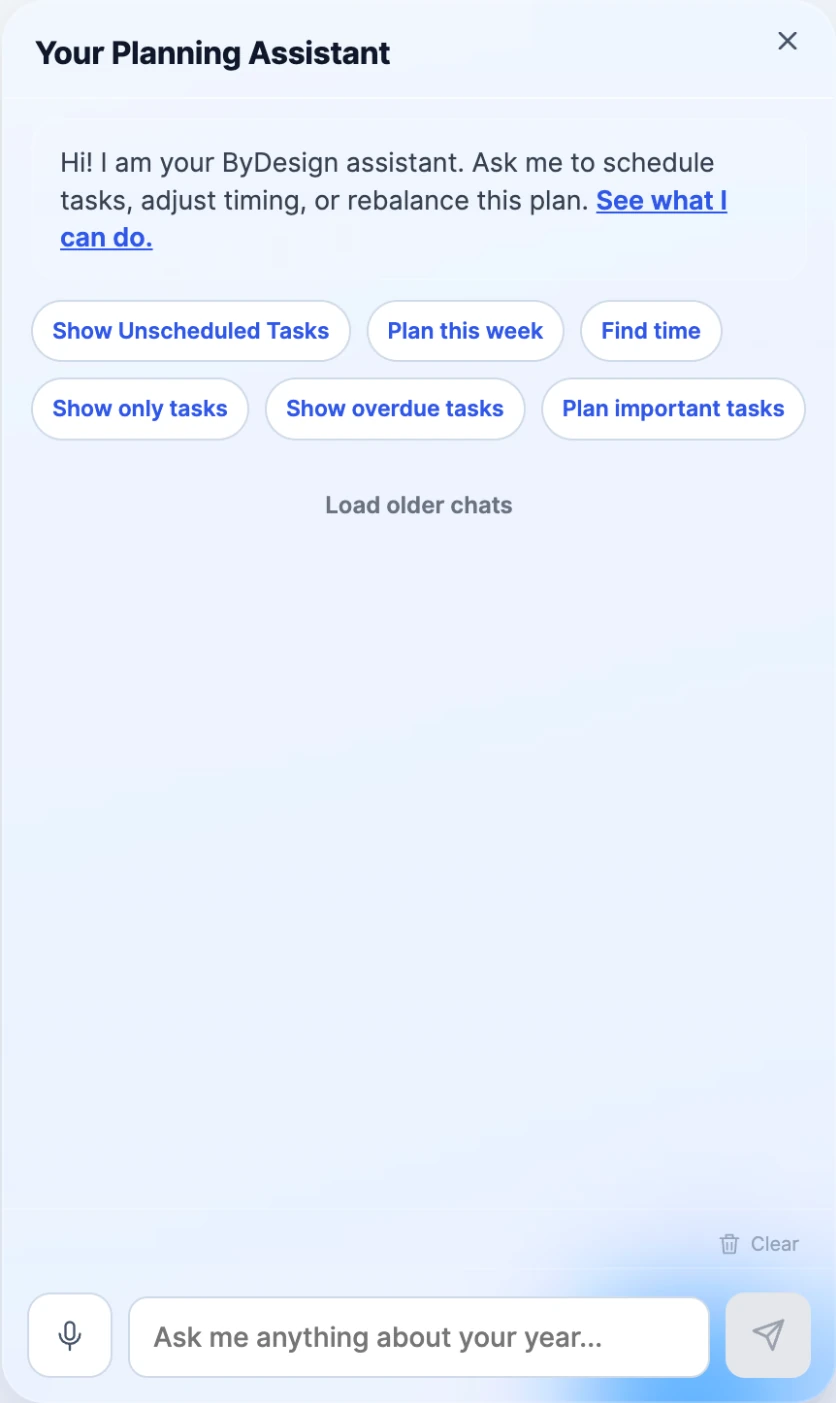
When it opens, you’ll see a few suggestions for what you might want to do right now, like Plan this week, Find time, Show Unscheduled Tasks or Show overdue tasks. Tap one, or just start typing.
What to say
There’s no special syntax. A few ideas:
- Moving things around: “Move my afternoon to tomorrow”, “Clear Friday”, “Push everything non-urgent to next week”, “Move ‘Draft the proposal’ to Thursday at 3pm”.
- Finding time: “Find me three hours for deep work this week”, “When am I free on Thursday?”, “Find time for a meeting with Sarah”, “Find time to work out today”.
- Understanding your week: “What’s on my plate today?”, “What are my most important tasks?”, “Am I overloaded this week?”.
- Planning: “Plan my week”, “Plan next week”, “Move today’s unfinished tasks to tomorrow”.
- Working with goals: “How’s my reading goal going?”, “Show me everything under my fitness goal”.
- Navigating the canvas: “Show me next month”, “Show me the next 10 days”, “Take me to this week”.
Use your voice
Tap the mic or Voice and start talking; you’ll see your words appear as you speak.
Turn on Hands free voice in Settings → ByDesign AI and ByDesign listens for a wake word, so you can just say “Hi ByDesign” instead of tapping the mic. Hands-free voice works in Chrome, Edge and Safari.
Before it changes anything
- You see a preview first. When the assistant plans or moves things, it lays the changes out on a preview of your calendar. Nothing changes until you click Accept & Schedule; Cancel throws the draft away.
- Your other calendars are protected. Events from connected calendars, like Google, stay where they are by default, and anything that already has a time stays put unless you name it.
- It tells you when something doesn’t fit. If the time you ask for is taken, it offers to take the slot anyway, a free time nearby, or to cancel.
- Nothing gets deleted without asking you. With Ask before acting on, it also checks with you when a request could mean more than one thing.
Getting better results
- Give it context. “Find time to run” works; “Find time to run, I’d rather do mornings” works better.
- Say what matters. If something is non-negotiable this week, tell it, and it’ll plan around that.
- Follow up naturally. It remembers the conversation, so “Actually, make that Thursday” works fine. Use Clear to start a fresh conversation.
Good to know
- Requests use AI credits from your plan’s monthly allowance.
- The assistant comes with the AI and AI Plus plans.