

Navigation
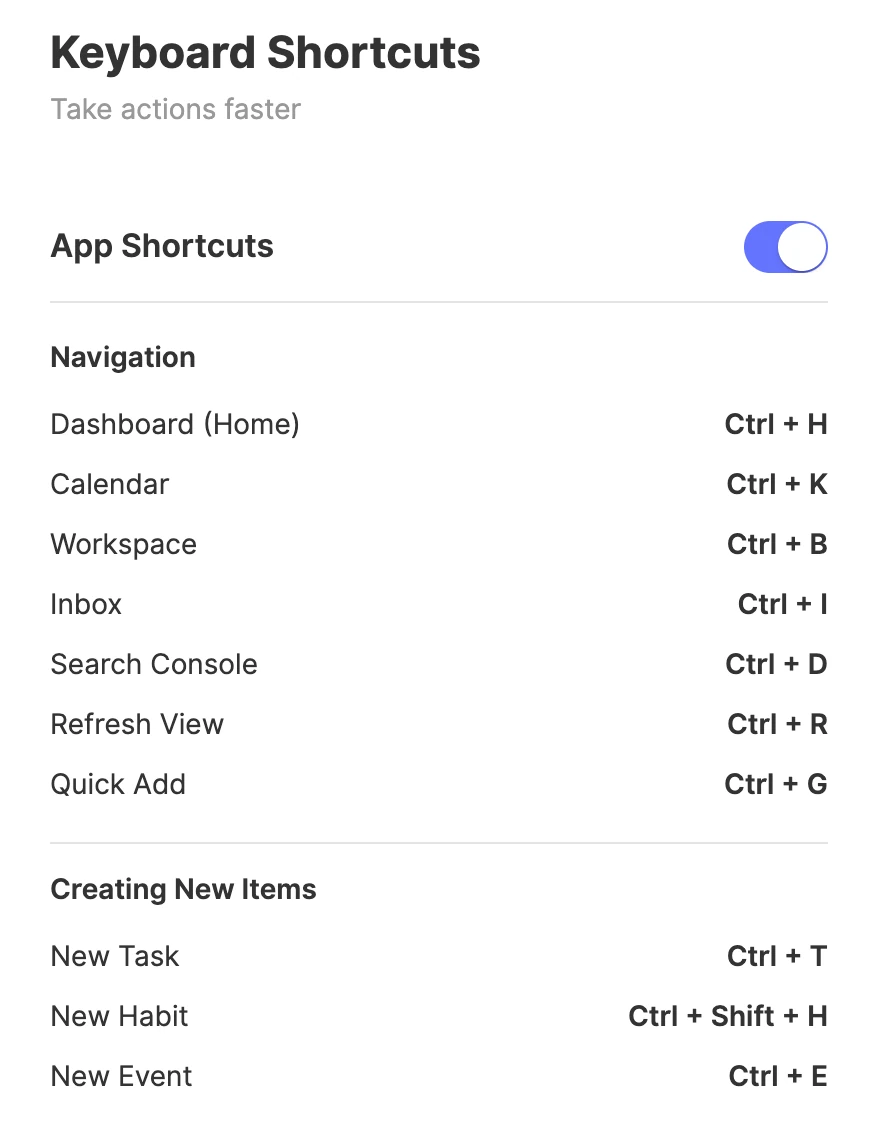
- Ctrl+H: go to the Dashboard (Home).
- Ctrl+K: go to the Calendar.
- Ctrl+B: go to the Workspace.
- Ctrl+I: go to your Inbox.
- Ctrl+D: open the Search Console, when no task is selected.
- Ctrl+R: refresh the view.
- Ctrl+G: open Quick Add, the quick capture console.
Creating new items
- Ctrl+T: new task.
- Ctrl+Shift+H: new habit.
- Ctrl+E: new event.
Each one opens the form set to today, as an all-day item. Change the date and time in the form, then click Save.
Task and item management
Select the task first: click it, or put your cursor in it. Then:
- Ctrl+D: mark it as complete, or not complete again.
- Delete (or Backspace), with the task’s handle selected: delete it.
- Ctrl+Shift+E: open its edit form, for a task, a habit or an event.
- Alt+N (Option+N on a Mac): open its notes.
- Ctrl+Shift+U: set how long it takes.
- Tab: make it a subtask of the task above. Shift+Tab moves it back out.
- Ctrl+A, when you’re not typing: select all the tasks in the list.
Calendar views
- M: switch to the monthly view.
- W: switch to the weekly view.
- T: jump to today.
Press these on their own, with no Ctrl, while the Calendar is open.
While you type command words
- ↑ and ↓: move through the options.
- Enter: pick the highlighted option.
- Esc: cancel the command word, so it stays plain text.
Turn shortcuts off
Want fewer shortcuts or a quieter interface? Open Settings → Keyboard Shortcuts and turn off App Shortcuts. It’s useful if you’re new, need accessibility support or prefer using the mouse. Turn it back on any time.
On a Mac and in the browser
- On a Mac, press ⌘ or Control wherever you see Ctrl. If your Mac already uses a ⌘ combination, like ⌘H to hide the app, press Control instead.
- In a web browser, the browser keeps a few shortcuts for itself, like Ctrl+T for a new tab. If one doesn’t respond, use the Mac or Windows app, or the buttons in ByDesign.
Good to know
- Ctrl+D does two things: with a task selected, it marks the task complete; with nothing selected, it opens Search.
- Shortcuts don’t run while a window like the task form is open.
Keep reading
- Planning basicsQuick AddCapture a task or event in one line from anywhere in ByDesign, with its date, time, deadline, repeat and page.
- Planning basicsNatural language: type tasks the way you thinkAdd dates, times, durations, deadlines, repeats and pages as you type, with command words like on, at and every.