

Start with your Dashboard
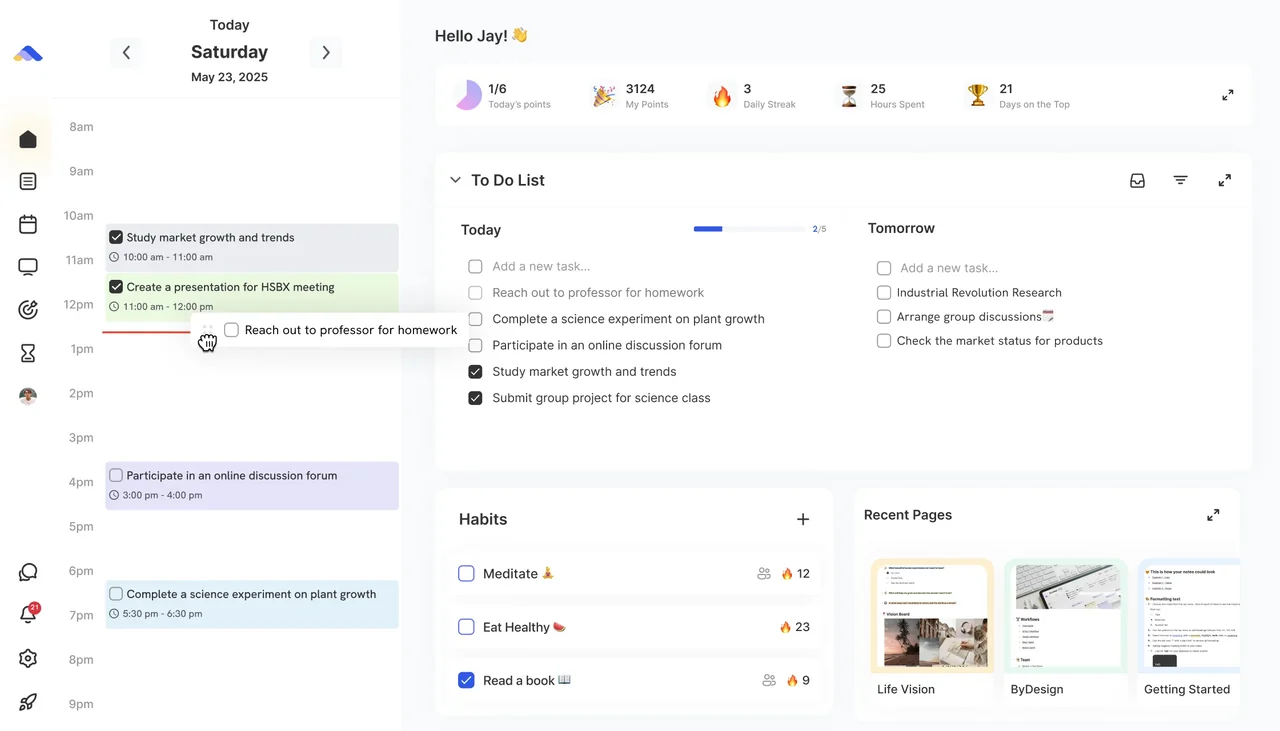
Your Dashboard is the heart of your day: today’s calendar on one side and your widgets on the other. The Tasks widget splits your tasks into Today, Overdue, Tomorrow and Someday, so nothing slips.
- Drag a task onto the calendar to block out time for it.
- Click Customize to add widgets like your Inbox, a Scribble Pad, Habits, Starred Pages or a pinned page, and drag them into the layout you like.
- See your meetings and tasks together, without switching apps.
Capture everything
Get tasks out of your head the moment they come up, and sort them later. Anything with no date and no page lands in your Inbox.
- On the web or desktop, press Ctrl+G, or ⌘G on a Mac, to open Quick Add from anywhere.
- On your phone, tap + to add a task, or use the Inbox widget on your home screen.
- On iPhone, say “Hey Siri, Inbox Task” once you’ve set up the shortcut.
- From your email, send or forward any email to your unique ByDesign address, found in Settings under Email Tasks to Your Inbox, and it becomes a task in your Inbox.
Set up your calendar
Step 1: Connect your calendars
In Settings → Calendar's Integrations, add Google, Apple or Outlook, so your meetings sit next to your tasks.
Step 2: Colour your pages
Give your pages colours, so their tasks are easy to tell apart on the calendar.
Step 3: Block out your day
Open the Calendar, click Workspace to see your unscheduled tasks beside it, and drag each one onto a time.
Organise your Workspace
Think of your Workspace as your long-term memory: where you plan, keep ideas and organise your world. Most people start with two folders, like Personal and Work, then add pages inside them, such as a grocery list, side projects or meeting notes.
- Write tasks right on a page, next to your notes, and schedule them when you’re ready.
- Add pages inside pages to break bigger things down.
- Empty your Inbox regularly by dragging each task into the right page.
- Star the pages you’re focused on, and drag pages around the sidebar to keep them in order.
- Share a page when you’re working on it with someone.
Plan the night before
Step 1: In the evening
Open your Dashboard and add what you want to do tomorrow under Tomorrow, next to what’s already scheduled.
Step 2: In the morning
Open your Dashboard to see your meetings and tasks in one view.
Step 3: Block out the day
Spend a few minutes dragging tasks into time slots, so you start with a realistic plan instead of scrambling.
Plan your week
Once a week, open Timeline in your Workspace and switch to Weekly to see the next 10 weeks. Drag tasks to the week they belong in, and move ideas you’re not ready for into Someday.
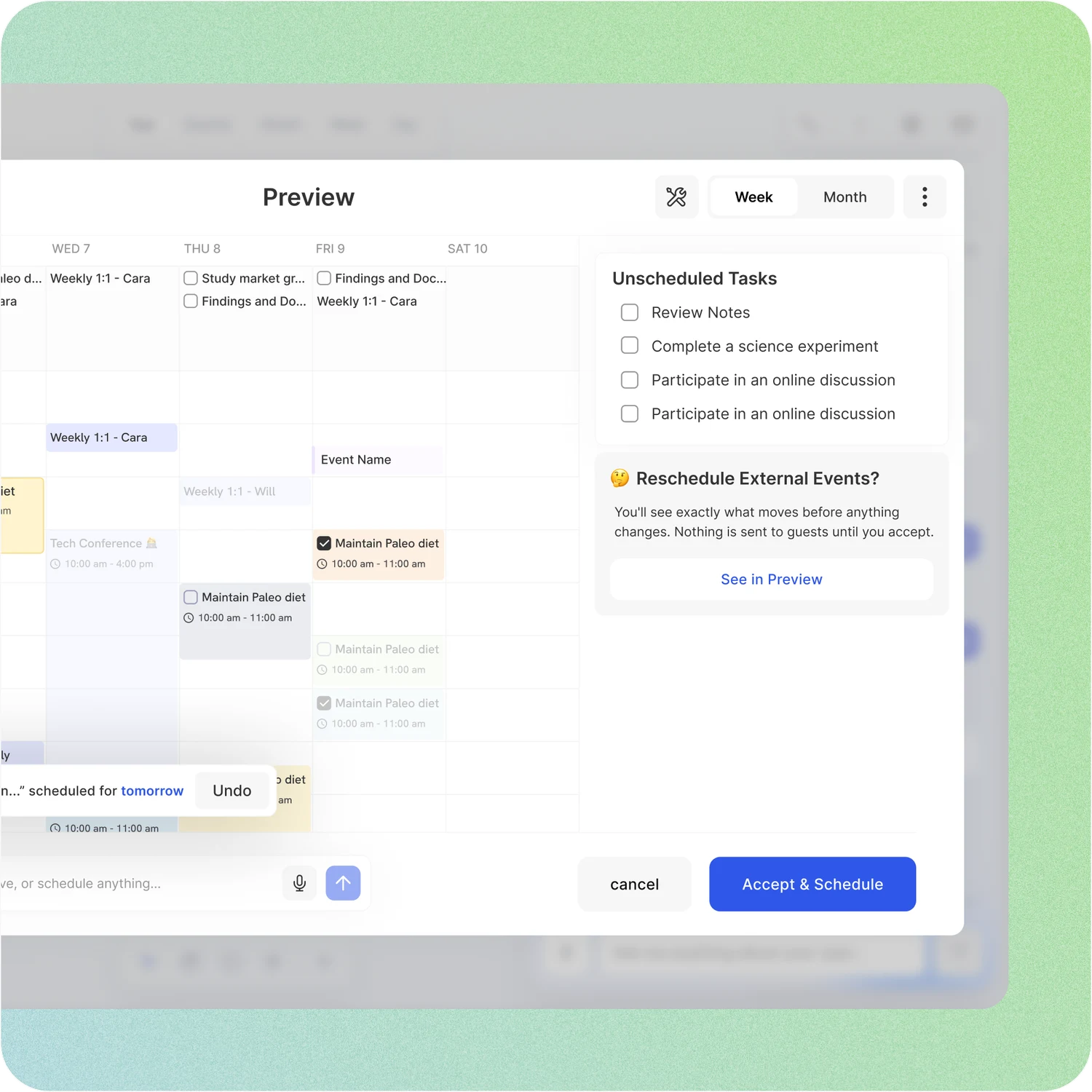
On the AI and AI Plus plans, let AI scheduling do the heavy lifting: press Plan this week, or ask the assistant to “plan my week”. It drafts the week on a preview of your calendar, around your hours and events, and nothing changes until you click Accept & Schedule.
Stay on track during the day
- Use the Pomodoro Timer to work in focused intervals with short breaks.
- Add reminders to the tasks that matter, before the time you plan to start or before the deadline.
- Tick off your habits as you go and keep your streaks alive.
- Running late? Drag what didn’t happen to tomorrow, or let AI scheduling move today’s unfinished tasks for you.
It all connects
- Tasks you write on a page show up on your Dashboard on their day, or under Someday if they have no date.
- Scheduled tasks appear on your calendar, and on Google, Apple or Outlook too if you choose a calendar to push them to.
- Pinned and starred pages keep what you’re focused on one click away.
- Tasks, pages and calendar items can all be dragged, so you’re never locked in.
Tip
Start simple. Add folders, nested pages, tags and other views when you need them: you don’t have to follow anyone’s system.
Good to know
- Quick Add is on the web and in the Mac and Windows apps; on your phone, use the + button.
- AI scheduling comes with the AI and AI Plus plans. Its schedule preview is on the web and in the Mac and Windows apps; on your phone, ask the assistant to schedule tasks for you.
Keep reading
- Getting startedQuick tourA tour of ByDesign: the Dashboard, Workspace, pages, tasks, the calendar, habits, the Pomodoro Timer and AI.
- Getting startedSiri and ShortcutsAdd tasks with Siri, from the Shortcuts app or your Home Screen, and open the AI assistant by voice.
- More about this featureTime blocking