

Share a page with people
Step 1: Open Share
Click the people icon at the top right of the page (Share Page).
Step 2: Add people
Type a name to find one of your connections, or type email addresses, pressing a comma or Enter after each, to invite anyone by email.
Step 3: Choose their access
People you add by name start with can edit, and email invites with can view. Change it with the menu next to each, then click Done, or Send Invites for emails.
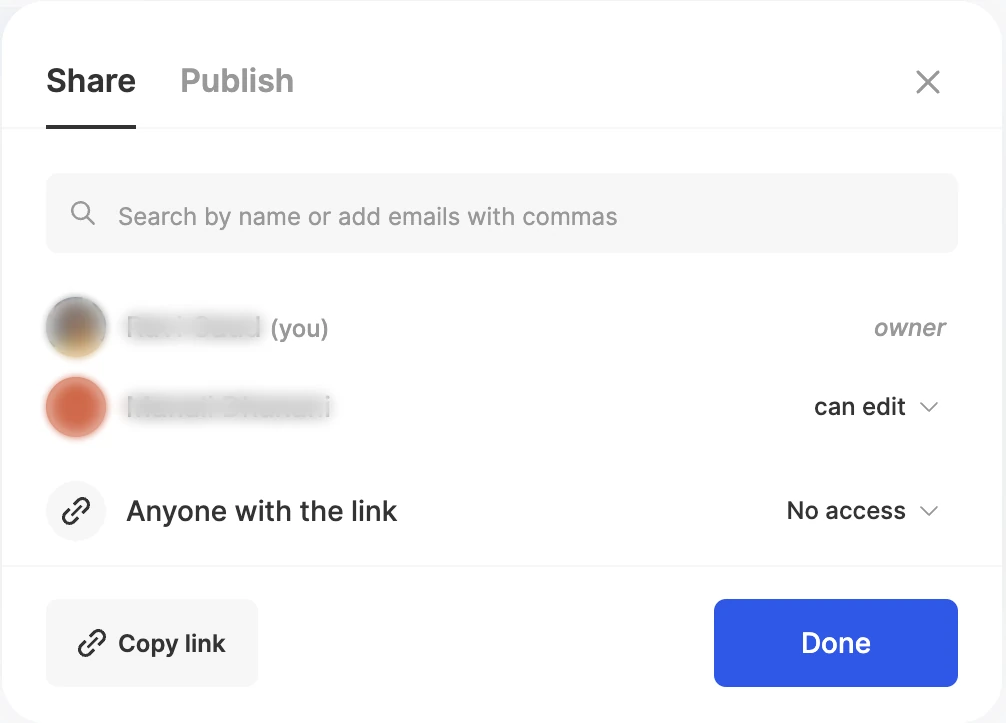
- Change access any time with the menu next to someone’s name: can view, can comment or can edit. The same menu has Transfer Ownership and Remove access.
- Only the owner can add people and change their access.
- People you invite by email get an email saying you shared the page with them.
- Requests: someone who opens a page they can’t see can click Request Permission. As the owner, you’ll see the request in Share and can Accept or Deny it.
Share with a link
Anyone with the link starts at No access. The owner can change it to can view, can comment or can edit; then click Copy link and send it. It’s handy for:
- Working with freelancers or other people outside your team.
- Letting someone check a page before they join.
- Sharing general information with a bigger group.
Tip
Choose Remove access for the link whenever you want to stop link sharing.
Publish a page to the web
Sometimes you don’t need collaboration, just a page people can read. Publish to web turns a page into a clean, read-only web page that anyone with the link can open, with no account needed.
Step 1: Open Share
Click the people icon at the top right of the page.
Step 2: Switch to Publish
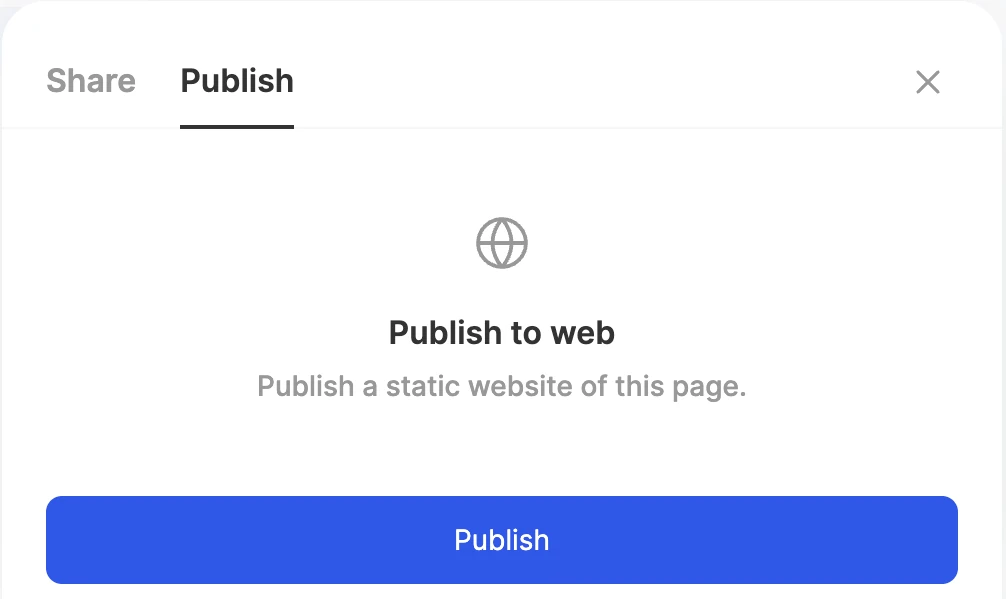
Click the Publish tab.
Step 3: Publish
Click Publish. The page is now Live on the web: copy its link, or click Visit Website to see it.
Step 4: Unpublish any time
Click Unpublish to take the page down.
Good uses for a published page:
- A project brief or proposal for a client.
- A reading list, a travel itinerary or an event schedule.
- Handbooks, SOPs and checklists for people who don’t use ByDesign.
- A simple public page, like a portfolio.
Comment and discuss
Comments let you and your collaborators talk about a page without changing it.
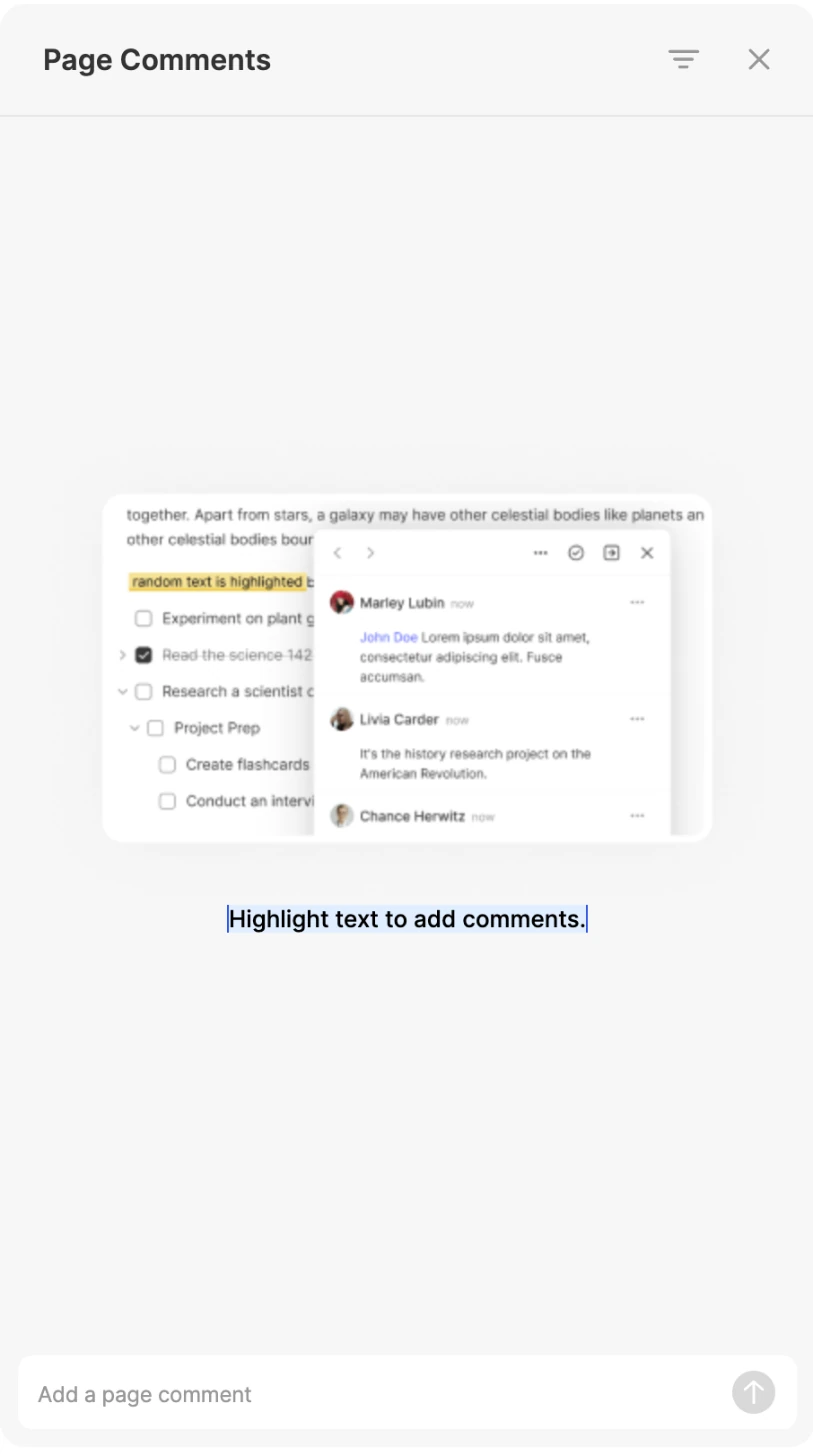
- On specific text: select it and click Comment in the toolbar that appears. Commented text is highlighted; click it to open the thread next to it.
- On the whole page: click the comment icon at the top of the page to open Page Comments, and type in Add a page comment.
- Reply in a thread’s Add a comment... box to keep the conversation together.
- Type @ to mention someone; they get a notification.
- Resolve a thread when it’s done. Resolved threads are hidden: choose Show Resolved in the panel’s Filter menu to see them, and Unresolve to reopen one.
Assign one task without sharing the page
Need help with one thing, not the whole project? Assign a single task to someone and keep the rest of the page private.
Step 1: Open the assignees
Click the task’s Assignees column, or open the task with Ctrl+Shift+E. No Assignees column? Turn it on with Change columns.
Step 2: Pick a person
Under Assign task to, choose someone from Page is shared with, or one of your connections under Assign without sharing page, then click Save.
Step 3: They get it
They get a notification that you shared a task with them. If they can’t see the page, the task lands in their Inbox.
Connect with people
Your connections are the people in your ByDesign network. Once you’re connected, they show up when you share a page or assign a task, and you can message them.
- See your connections: click your profile picture in the menu on the left, then your Connections.
- Connect with someone on ByDesign: click Connect on their profile. Once they accept, you’re connected.
- Invite someone new: click Invite Others on your profile to invite people from your Google or Microsoft contacts, copy an invite link, or send email invites.
Keep reading
- Working with pagesOrganizing your work and lifeCreate pages and folders, fill them with notes, tasks, tables and media, and move work between pages and your calendar.
- Working with pagesCustomizing and managing a pageColor-code a page, use its menu to star, duplicate, export or tidy it, and restore deleted pages from Trash.